A drag-and-drop canvas for laying out a page: the visual counterpart to hand-editing a
layout file. Open it from the Project Editor
by tapping a .canvas or .grid file.
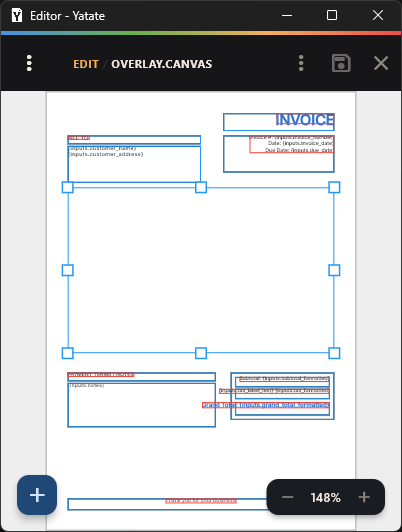
- Add (the + button) - a Text, Image, Box, Scan Code or PDF block, or a Grid or Canvas Overlay. An overlay block holds more blocks; it can embed another layout file or keep its content inline. Select one and edit it in place, or rotate and scale it as a unit with its transform.
- Properties - select a block and open Properties to edit it. The panel is built from the block's own properties, grouped as in the layout file reference. PDF and Overlay blocks also have an Auto Size button.
- Select - tap a block, or drag on empty canvas to box-select: left to right selects blocks fully inside, right to left selects blocks the box touches. Shift adds and Ctrl removes.
- Move and resize - drag, or use the arrow keys (1 mm); Delete removes. Zoom and pan with pinch, wheel, the on-screen buttons, or Space+drag.
- Undo and Redo - toolbar icons, Ctrl+Z and Ctrl+Shift+Z (⌘ on macOS). A drag or a burst of nudges undoes as one step.
- Right-click or long-press - Bring to Front, Send to Back, Freeze, Delete, Copy, Align and Properties. Freeze (Ctrl+F) locks a block in place; Unfreeze All in the editor menu is the only way back. Align lines up the selection to a reference point.
- Save appears when there are unsaved changes. If the file changes outside the app, a banner offers to reload.
Fonts are covered in Assets Overview. The editor shows one layout file at a time; which pages it goes on, and in what order, is set by process.js. To see a layout over a page, use the background guide to pick a PDF or blank page to position against.